[HTML version](https://homehero.pro/docs/) · [All Markdown pages](https://homehero.pro/markdown-index.md)
Start using HomeHero: where to get it, what works without an account, and how to create one when you want sync.
---
# Getting started
HomeHero works the moment you open it. Here's where to get it, what you'll see first, and when an account is worth making.
## Get the app
On a computer, open [console.homehero.pro](https://console.homehero.pro/) in any modern browser. On Android, install it from [Google Play](https://play.google.com/store/apps/details?id=pro.homehero.app.free). On Linux, get it from the [Snap Store](https://snapcraft.io/homehero) or run `sudo snap install homehero`. On iPhone and iPad, [download it from the App Store](https://apps.apple.com/us/app/homehero/id6833014080) (iOS 16 or later); on Mac, get the [native app from the App Store](https://apps.apple.com/us/app/homehero/id6833014080?platform=mac) (macOS 12.0 or later). The free inventory works locally without an account; Sync and AI features are optional and need an internet connection.
## No account required
Without an account you get everything except sync, sharing and AI: items, locations, item types, tasks, tags, photos, files, search and export. It all lives in a database on your device, and nobody asks for your email.
The first time you open it, HomeHero adds a few example items, locations and tasks so the screen isn't empty. Delete them whenever you like. **Settings → Account → Regenerate Example Data** adds them back.
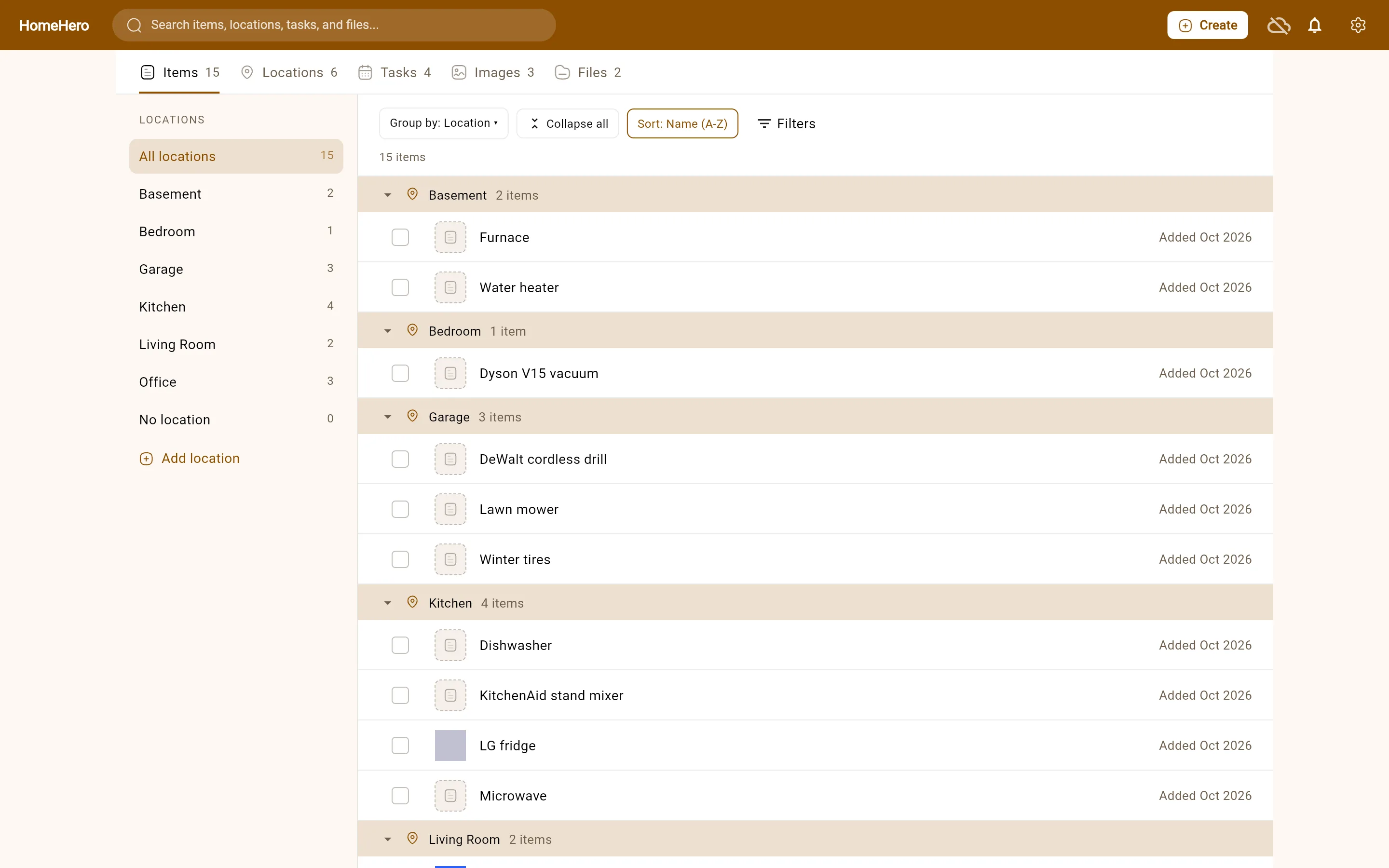
Browse on a wide window. On a phone, the same tabs sit under the header and the location rail becomes a location picker.
## Creating an account
You need an account for [Sync](https://homehero.pro/docs/sync-and-offline/), for [Premium AI features](https://homehero.pro/docs/adding-items/), and to share items. To create one, open **Settings → Account** and choose **Sign in for backup & sync**, or go straight to the [sign-up page](https://console.homehero.pro/signup). You can sign up with an email and password, or with Google.
After you sign up we send a verification email. You'll need to click it before you can subscribe to a plan. If it doesn't arrive, resend it from the Account page.
Forgot your password? Use [Forgot password](https://console.homehero.pro/forgot-password) on the sign-in screen to get a reset link by email.
## Languages and theme
HomeHero is available in English, French, Spanish and Polish. It follows your system language until you pick one in **Settings → Language**. The **Appearance theme** setting switches between Light, Dark and System.
## Where to go next
- [User guide](https://homehero.pro/docs/user-guide/): items, locations, item types and tasks
- [Adding items faster](https://homehero.pro/docs/adding-items/): photos and product links
- [Tags, search and sharing](https://homehero.pro/docs/advanced-usage/)
## Frequently asked questions
### How do I start a home inventory without signing up?
Open or install HomeHero, create a location and add your first item. No account is needed for local items, photos, files and tasks. The app starts with example data that you can delete.
### How do I restore the example inventory?
Open Settings → Account → Regenerate Example Data. This adds demonstration items, locations and tasks so you can explore the interface.
### When do I need a HomeHero account?
An account is needed for paid Sync, Premium AI and sharing. It is not needed to maintain a free inventory on one device. See [Sync and offline](https://homehero.pro/docs/sync-and-offline/) for the differences.