[HTML version](https://homehero.pro/docs/user-guide/) · [All Markdown pages](https://homehero.pro/markdown-index.md)
How HomeHero organises your home: the Browse screen, items, locations, item types with custom fields, tasks and reminders, photos and files.
---
# User guide
How HomeHero is put together, and what each part is for.
## Browse
Browse is the main screen. It has a tab for items, locations, tasks, images and files, each with a count.
On a window 900 px or wider, your locations sit in a rail on the left. Click one and you see only what's in it, including what's in its sub-locations. To move an item, drag its row onto a location in the rail. On a phone the same picker sits above the list.
Items are grouped by location unless you turn grouping off. Fold groups one at a time or with **Collapse all**, and HomeHero remembers which ones you folded. You can sort by name, newest or recently used, and the filters pick out items with no location or items that have a task. To move a batch, tick the items and change their location in one go.
## Adding things
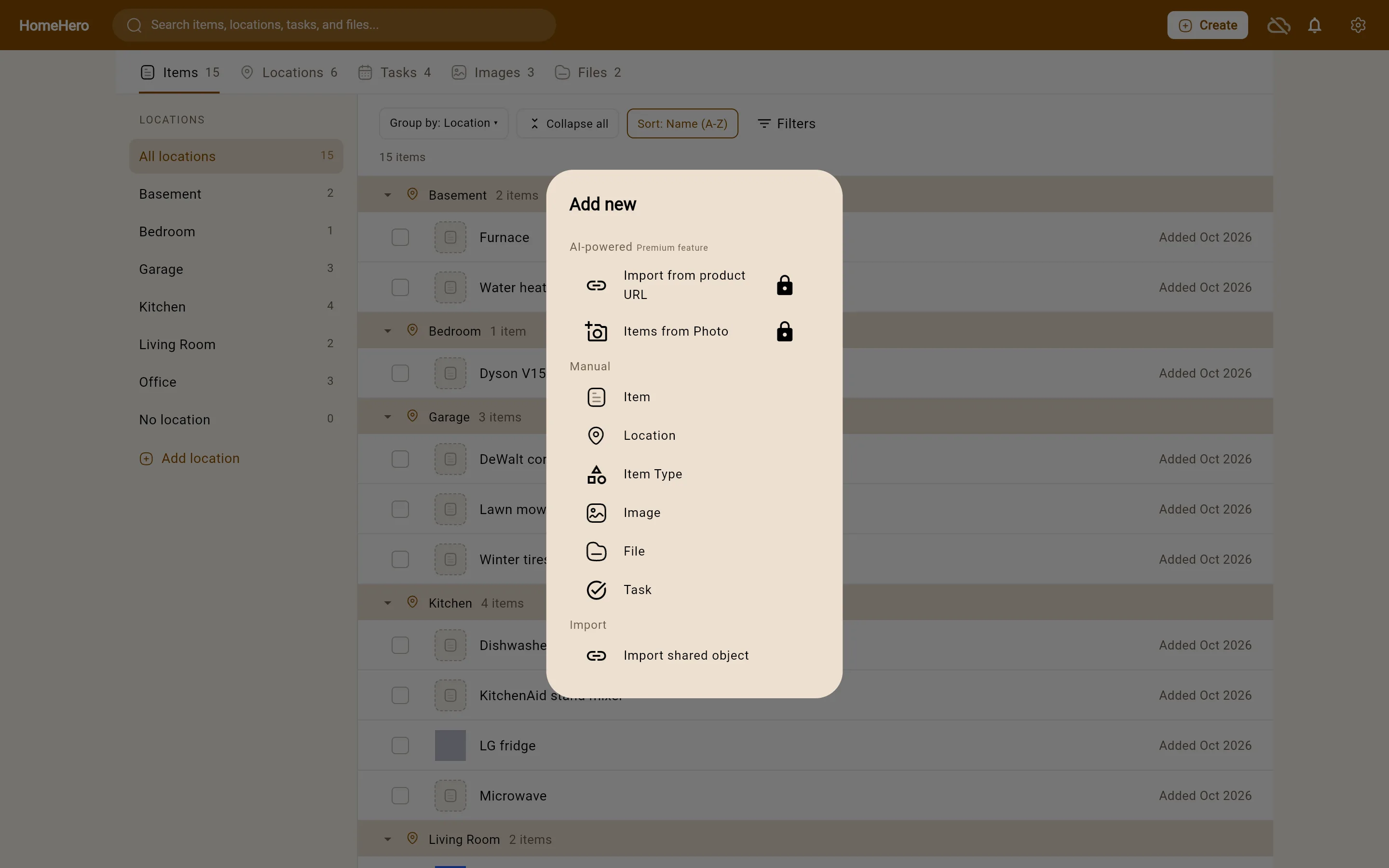
**Create** in the header (the **+** on a phone) opens the *Add new* menu. The manual options are Item, Location, Item Type, Image, File and Task. With Premium you also get *Import from product URL* and *Items from Photo*, covered in [Adding items faster](https://homehero.pro/docs/adding-items/). *Import shared object* adds something another person shared with you.
If you start from a location or a filtered view, the new item gets that location filled in.
## Items
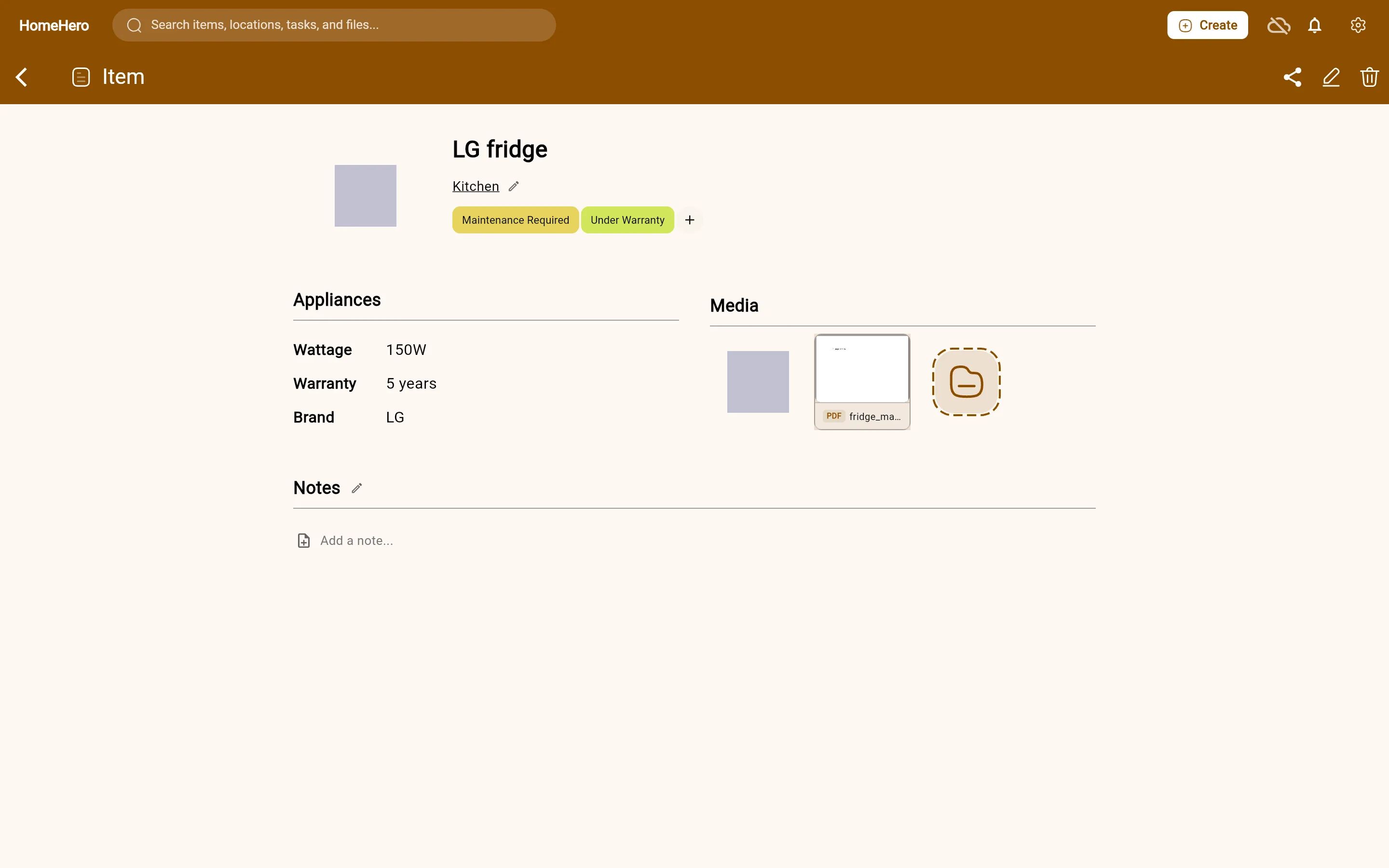
An item is anything worth keeping track of, from a car to a drill bit. It has a name, and it can have a location, an item type with its own fields, tags, notes, photos and files such as manuals and warranties.
It can also have a product URL: a link to the product or shop page. The item page shows it as "Product page" next to the site's name and opens it in your browser. When you save, HomeHero strips tracking bits like `utm_*` from the link.
Names don't have to be unique. Two "Desk lamp" items in different rooms are fine.
## Locations
A location is anywhere things live: a house, a room, a shelf, a storage bin. You can nest them as deep as you like, so House, then Garage, then Tool wall is fine. A location can have its own photo, description and tags, and its page lists the locations inside it.
While editing an item you can create a new location right from the location picker, without leaving the item.
## Item types and your own fields
Item types keep similar things consistent. Make a type such as *Electronics* and give it the fields you care about: *Model number*, *Serial number*, *Purchase date*, *Warranty*. Every item of that type shows them.
Fields are free text, so *2 years*, *2024-03-20* and *$1,299* all work. Each item type needs a unique name. You manage them under **Settings → Item Types**.
## Tasks and reminders
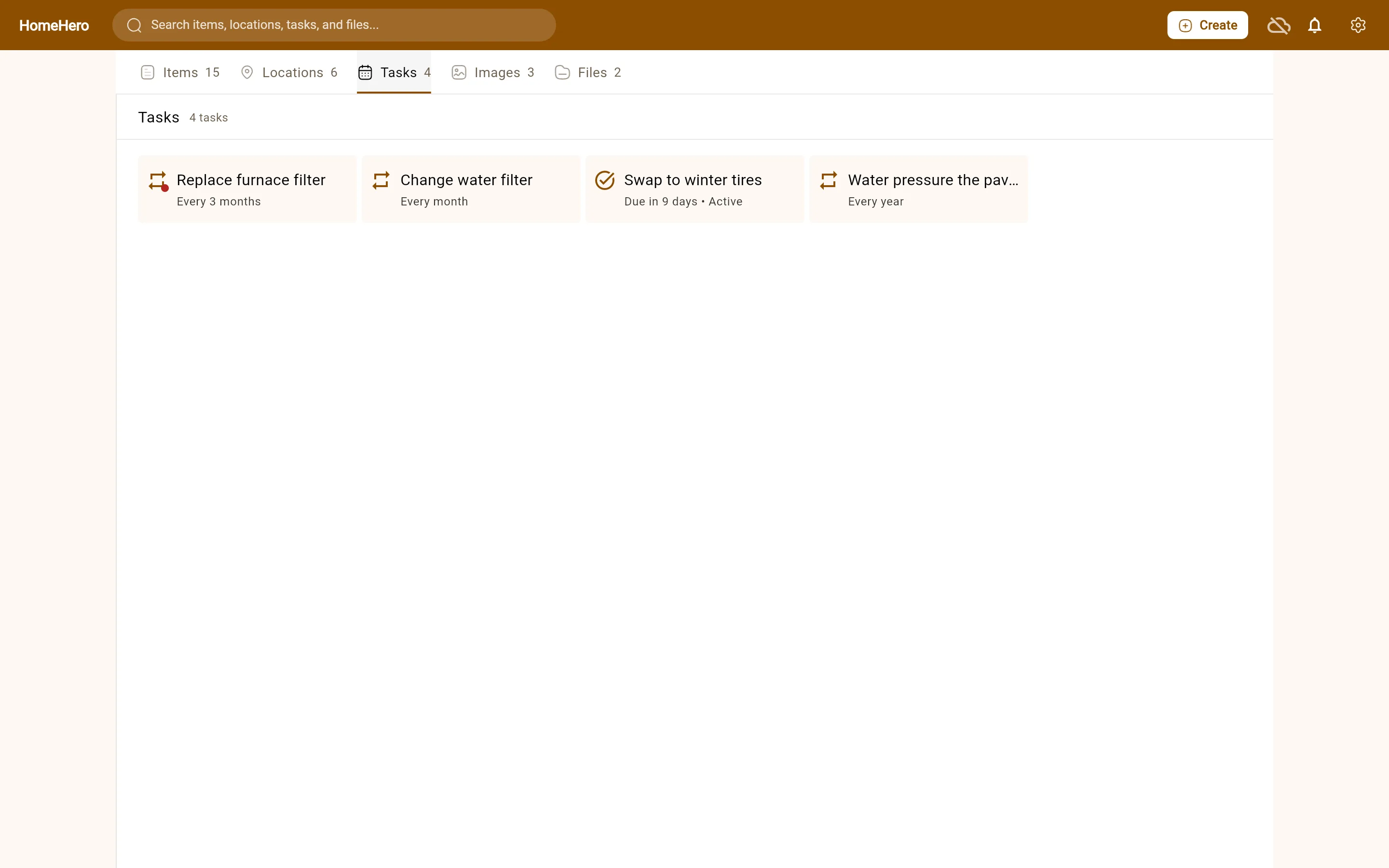
Tasks are for work around the house. A task has a name, an optional description and a priority (low, medium or high), and you can link it to items and locations.
A one-time task, like *Swap to winter tires*, can have a due date and is either planned or done. A recurring task, like *Replace furnace filter*, repeats on a schedule such as *every 3 months* and is either active or inactive.
The bell in the header lists tasks that are overdue or due in the next day, plus recurring tasks that have come due. With [Sync](https://homehero.pro/docs/sync-and-offline/) you also get an email the day before a task is due, and another if it goes overdue. HomeHero doesn't send push notifications to your phone.
## Photos and files
You can attach any kind of file to an item. PDFs show their first page. Text, CSV, JSON and similar files show their first few lines, and anything else shows an icon. On mobile and web you can crop a photo after picking it. With Sync, each file can be up to 50 MB.
The Images and Files tabs in Browse list everything you've attached. Open an image or a file to see which items use it, and tap through to any of them.
## Your property
**Settings → Account → My Property** is for details about the home itself: its type, address, indoor and outdoor area, bedrooms, bathrooms, the year it was built, and notes. It's optional, works without an account, and syncs if you have Sync.
## Theme and language
Switch between Light, Dark and System under **Settings → Appearance theme**. Pick English, French, Spanish or Polish under **Settings → Language**.
## Frequently asked questions
### How do I organise belongings by room, shelf or box?
Create nested locations, such as House → Garage → Shelf → Box, and assign items to them. Browse shows items from the selected location and its sublocations.
### Where do I record a serial number or purchase date?
Create an item type with custom fields such as Serial number and Purchase date, then assign that type to the item. Attach the receipt or manual as a file.
### Can I set recurring maintenance reminders?
Yes. Create a recurring task, choose its schedule and link it to the relevant item or location. The reminder bell is included in Free; email reminders require Sync. HomeHero does not send phone push notifications.