
Getting started
HomeHero works the moment you open it. Here's where to get it, what you'll see first, and when an account is worth making.
Get the app
On a computer, open console.homehero.pro in any modern browser. On Android, install
it from Google Play. On Linux, get it from the Snap
Store or run sudo snap install homehero. On iPhone and iPad, download it from the App Store (iOS 16 or later); on Mac, get the native app from the App Store (macOS 12.0 or later). The free inventory works locally without an account; Sync and AI features are optional and need an internet connection.
No account required
Without an account you get everything except sync, sharing and AI: items, locations, item types, tasks, tags, photos, files, search and export. It all lives in a database on your device, and nobody asks for your email.
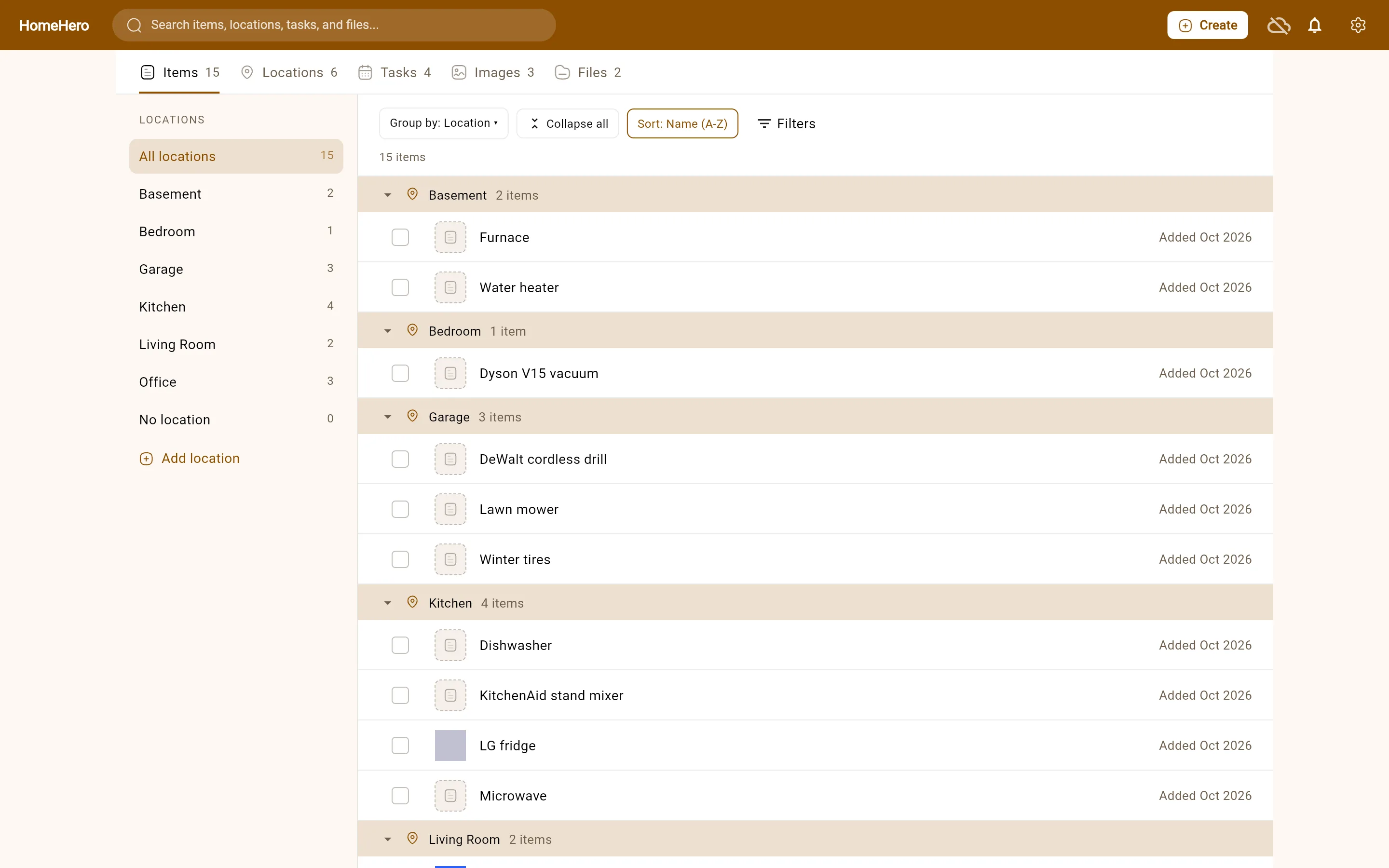
The first time you open it, HomeHero adds a few example items, locations and tasks so the screen isn't empty. Delete them whenever you like. Settings → Account → Regenerate Example Data adds them back.
Creating an account
You need an account for Sync, for Premium AI features, and to share items. To create one, open Settings → Account and choose Sign in for backup & sync, or go straight to the sign-up page. You can sign up with an email and password, or with Google.
After you sign up we send a verification email. You'll need to click it before you can subscribe to a plan. If it doesn't arrive, resend it from the Account page.
Forgot your password? Use Forgot password on the sign-in screen to get a reset link by email.
Languages and theme
HomeHero is available in English, French, Spanish and Polish. It follows your system language until you pick one in Settings → Language. The Appearance theme setting switches between Light, Dark and System.
Where to go next
- User guide: items, locations, item types and tasks
- Adding items faster: photos and product links
- Tags, search and sharing
Frequently asked questions
How do I start a home inventory without signing up?
Open or install HomeHero, create a location and add your first item. No account is needed for local items, photos, files and tasks. The app starts with example data that you can delete.
How do I restore the example inventory?
Open Settings → Account → Regenerate Example Data. This adds demonstration items, locations and tasks so you can explore the interface.
When do I need a HomeHero account?
An account is needed for paid Sync, Premium AI and sharing. It is not needed to maintain a free inventory on one device. See Sync and offline for the differences.